

Integration guides
ProPresenter
Show LiveSunday captions in ProPresenter with a Prop and Web Fill.
ProPresenter is widely used for lyrics, announcements, and media. LiveSunday captions belong on a Prop with a Web Fill, not on a lyric slide, so the overlay stays up when you change cues.
What you need
A saved caption link and its overlay URL from your LiveSunday dashboard (Captions → your link → copy overlay URL). ProPresenter 7 or later.
Option A: Prop with Web Fill (recommended)
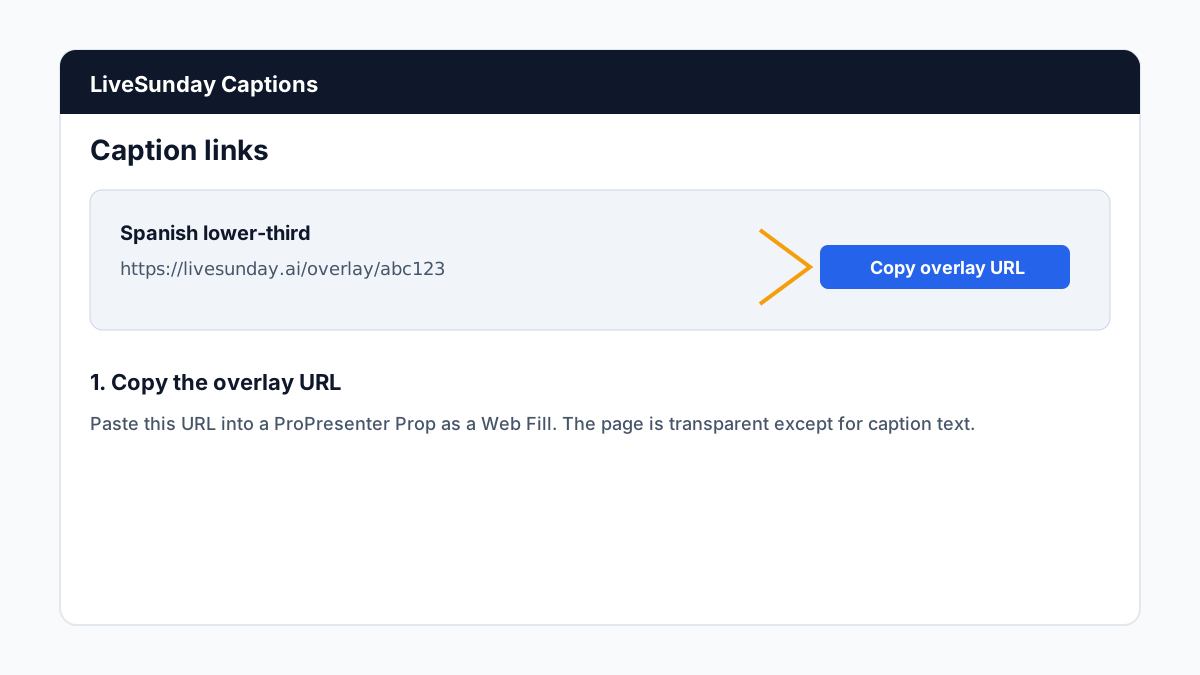
Copy your overlay URL
In LiveSunday, open Captions, open your caption link, and copy the overlay URL (for example https://livesunday.ai/overlay/abc123). Set caption position in that builder before you copy.
Create a Prop
- In ProPresenter, open Props and create a new Prop.
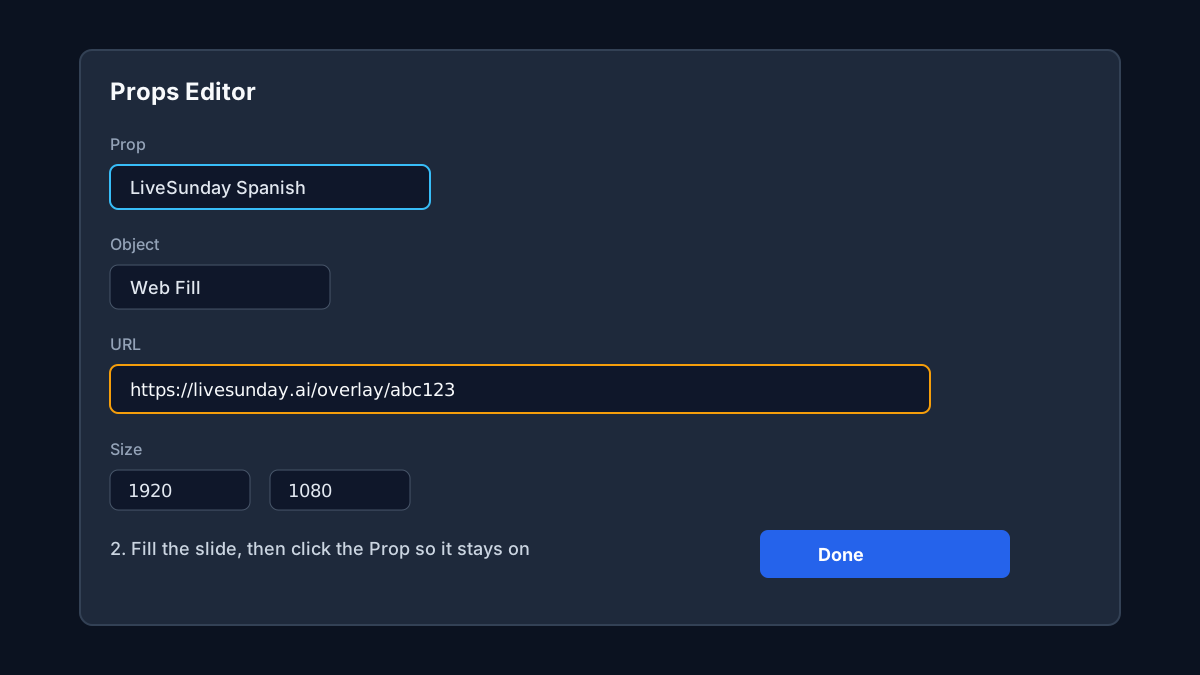
- Name it something clear, such as
LiveSunday – Spanish. - Set the Prop size to your output (for example
1920×1080).
Add a Web Fill and paste the URL
- Edit the Prop, click +, and add a Web object. Some versions call this Web Fill. If you only see shapes, add a rectangle and set its fill to Web.
- Paste the overlay URL into the URL field.
- Resize the object so it covers the entire slide. Do not crop it to a lower third. The overlay page already places the text; a small box only shows the top of the page, which is usually empty.
Click the Prop, then start the stream
Click the Prop so it is live. It stays on while you change slides. In the LiveSunday dashboard, click Start stream. Captions should appear on the output within a few seconds.
House screens vs stream
In Screens → Looks, you can leave Props on for the stream look and turn them off for the house screens.
Option B: NDI or capture card
If your ProPresenter version doesn't support Web Fill, you can bring the overlay in as a video source.
Open the overlay in a browser
On the streaming computer (or any computer on the same network), open your overlay URL in Chrome or Edge. Make the window full screen or match your output resolution.
Broadcast via NDI
Use OBS (with NDI output) or NDI Scan Converter to broadcast the browser window as an NDI source on your network.
Add NDI source in ProPresenter
In ProPresenter, add the NDI source as a Video Input and position it on your output. Keep the source full-frame so LiveSunday's caption position still matches.
Match resolutions
The Prop, Web Fill, and output should share the same resolution so font size and position from the caption link builder scale correctly.
Don't put captions on a slide
A Web object on a lyric slide disappears when you change cues. Use a Prop so captions stay up for the whole service.